Testing in Editor
AR apps normally require building and testing on a real device to see results. VLSDK provides two methods to test VL behavior in the Unity Editor environment as well.
On a real device, ARFoundation automatically provides camera images and position information, so no additional data configuration is needed. The settings below are for the Editor environment only.
Method 1: VL Requests Using Texture
This is the simplest method for testing VL requests using an image file or video. You can use it immediately without installing any additional packages.
Best suited for:
- When you want to quickly verify VL recognition results only
- When testing VL responses for specific images
Configuration
When you create a VLSDKManager, a Texture Provider component is automatically added. Assign the Texture you want to send requests with to the Texture To Send field.
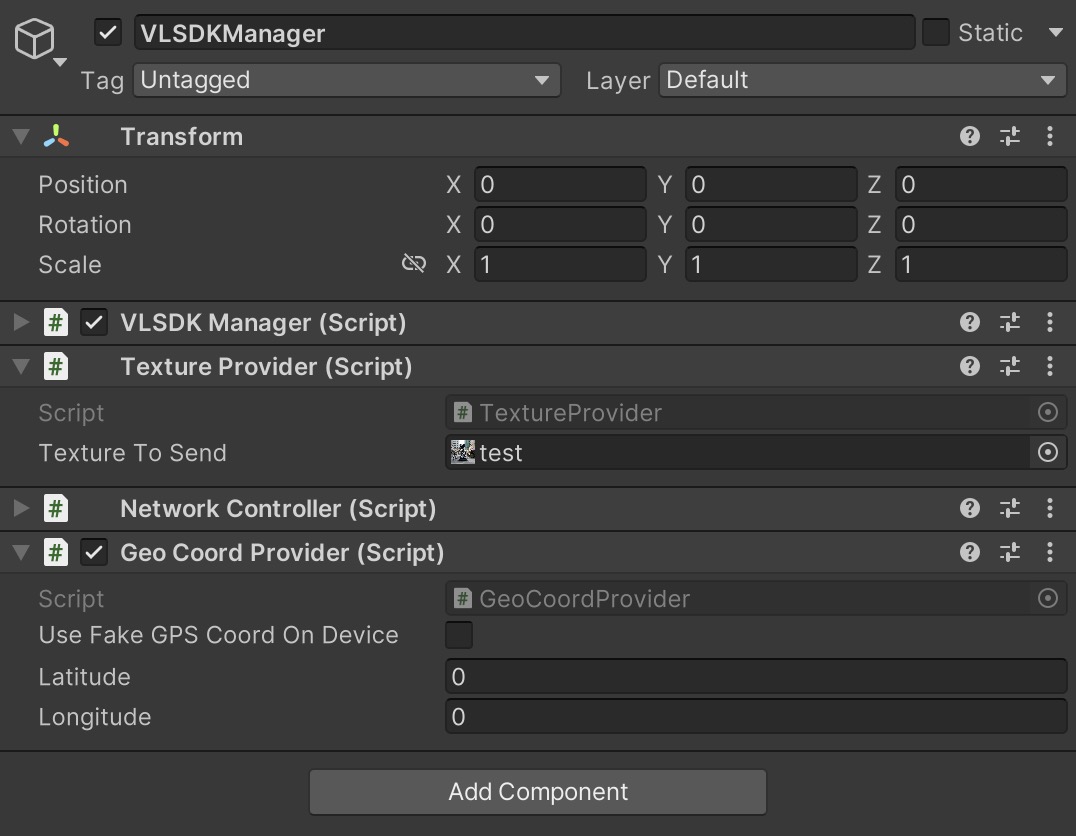
Using an Image File
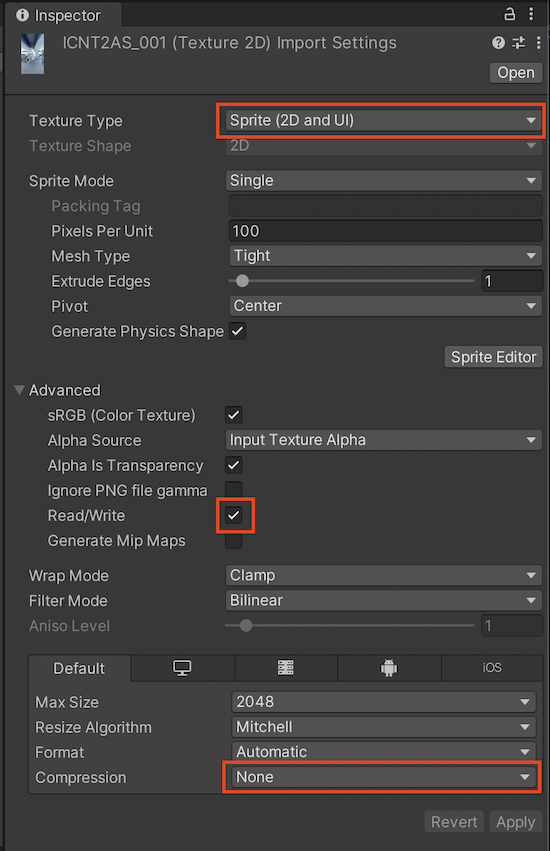
In the image file's Import Settings, set Texture Type to Sprite (2D and UI), then assign it to Texture To Send.
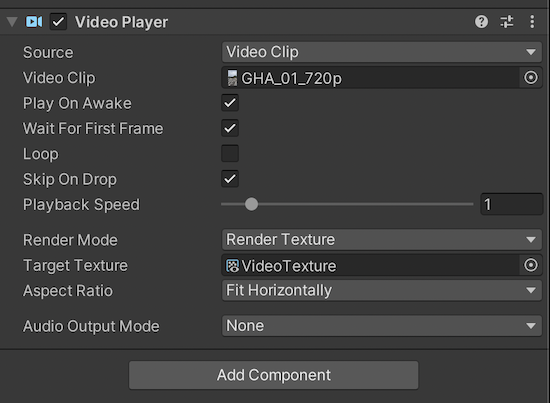
Using a Video
Set the Video Player's Render Mode to Render Texture and assign the VideoTexture included in VLSDK to the Target Texture. Then assign this VideoTexture to Texture To Send.
Method 2: Playback Using AR Dataset
This method plays back an AR dataset recorded on a real device in the Editor. Since it reproduces not only the camera image but also the device's movement (VIO), you can get results most similar to actual device behavior.
Best suited for:
- When verifying position estimation accuracy based on device movement
- When testing the full flow including VIO fusion behavior
- When repeating the same path for testing
For detailed configuration, see AR Dataset.