Implementing a Dataset App
In this tutorial, you will implement the 2.Dataset sample project that allows testing with ARDataset, and learn how to integrate ARDataset. Using Dataset mode, you can develop a similar AR experience to the actual environment even without a real device.
Before starting this tutorial, you must complete Implementing a Simple App.
1. Recording a Dataset
To use Dataset mode, you need data recorded through the ARDataset Recorder. Please refer to this documentation for how to record data using the ARDataset Recorder.
2. Adding the Player Package
To use Dataset mode, you must first add the Player package to your project.
If you installed VLSDK using the Custom Package method, all sample projects are included by default, so you don't need to perform the steps below.
2.1 Installing the ARDataset Player Package
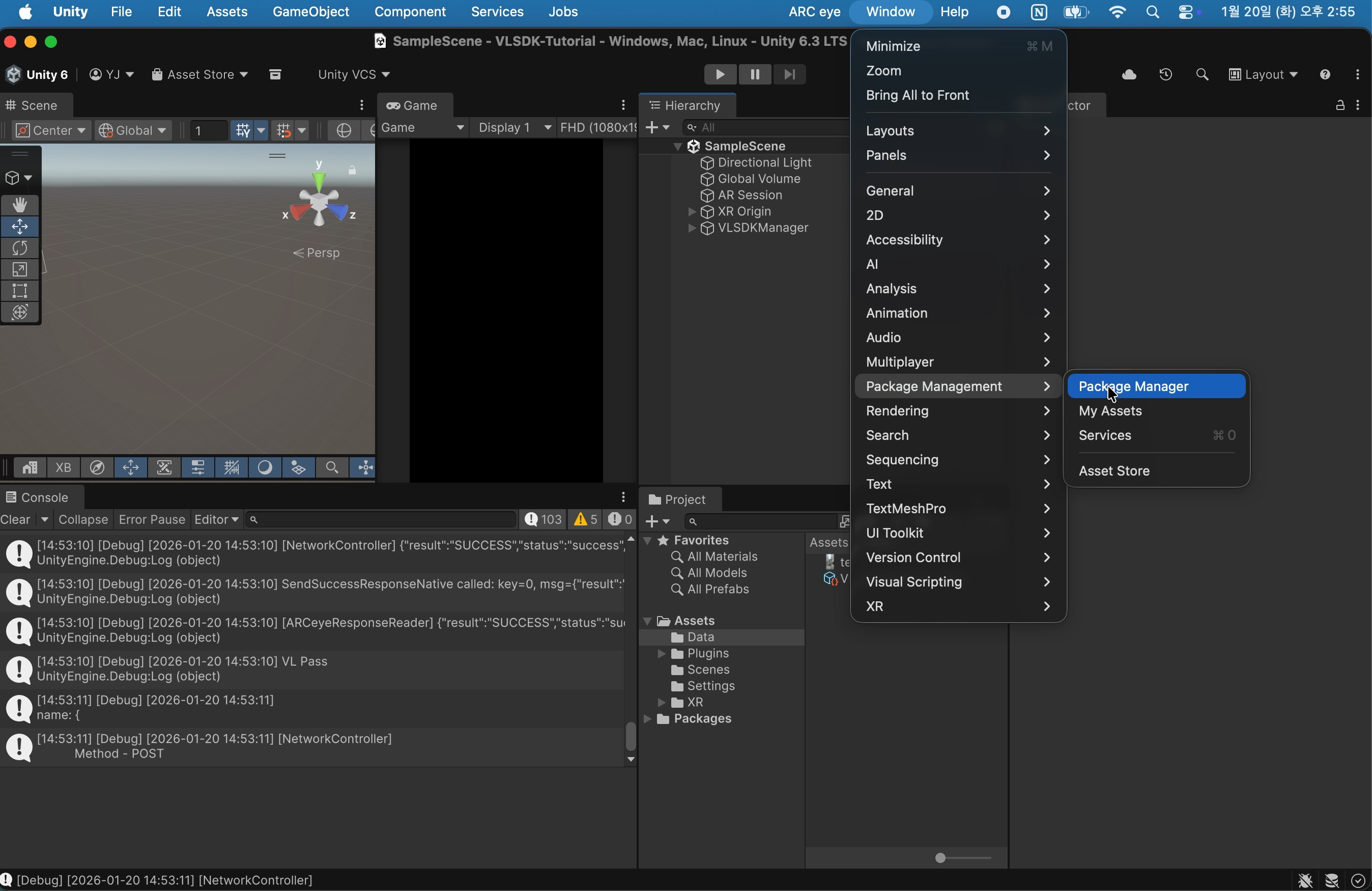
- Select
Window>Package Management>Package Manager.
-
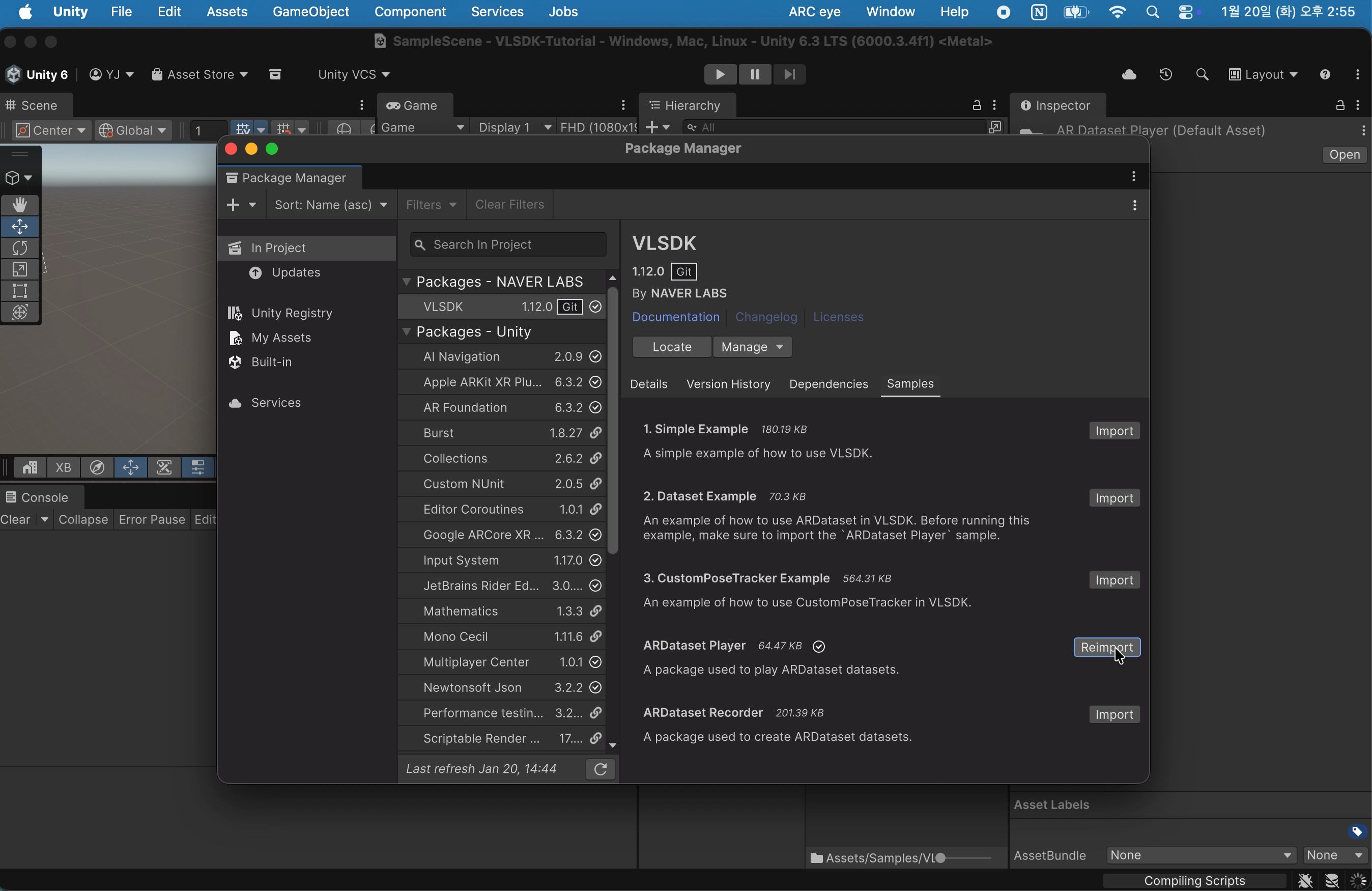
In the Package Manager window, select the
VLSDKpackage and then select theSamplestab. -
Find
ARDataset Playeramong the sample projects and select theImportbutton.
3. Adding ARDatasetManager
ARDatasetManager plays a role in playing AR datasets created in Dataset mode and restoring various sensor information from the time of recording.
3.1 Creating ARDatasetManager
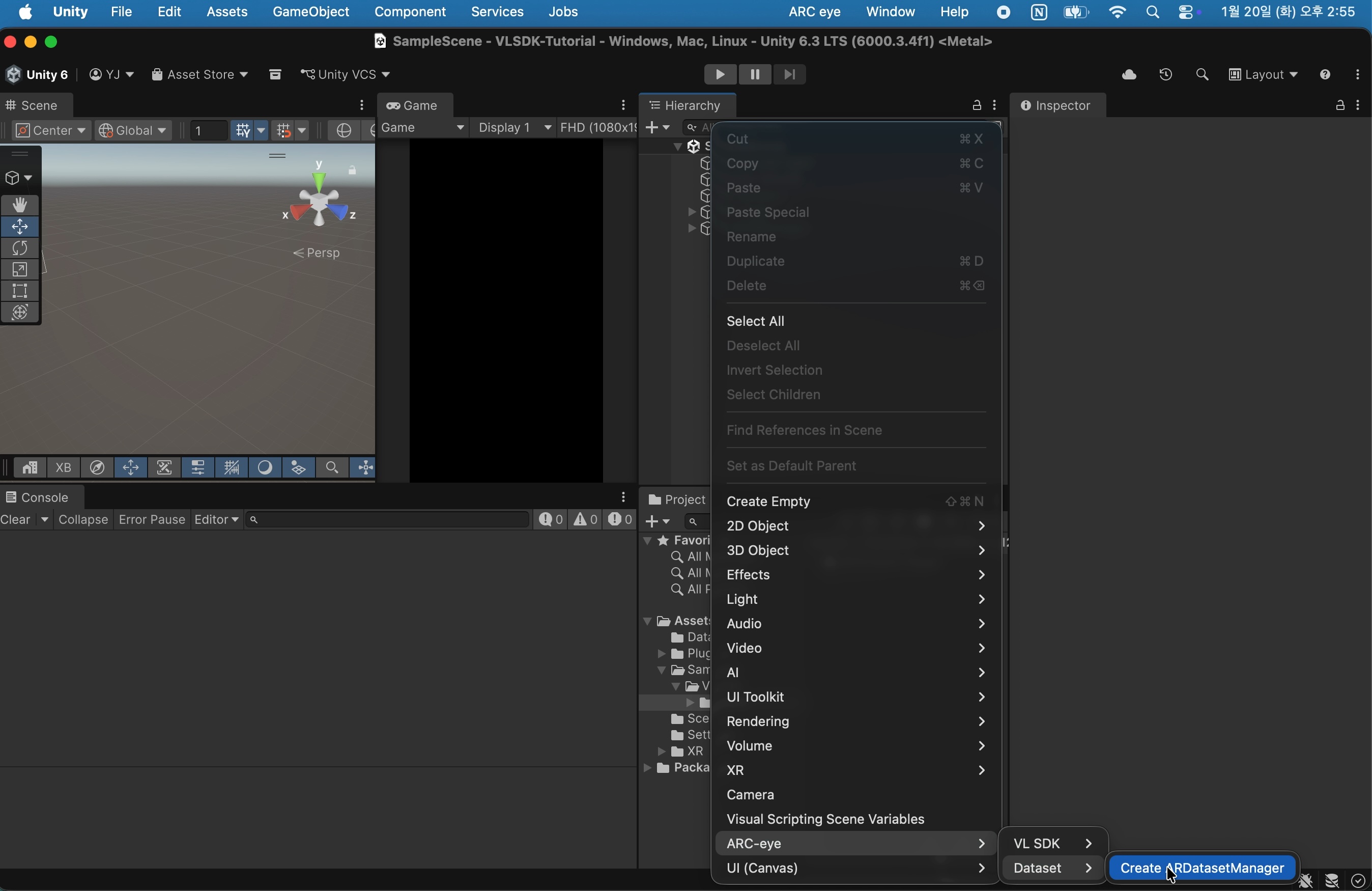
- Right-click in the Hierarchy window and select
GameObject>ARC-eye>Dataset>Create ARDatasetManager. Through this process, you can add theARDatasetManagerobject to the scene.
3.2 Setting up Custom Pose Tracker Adaptor
- VLSDK basically uses
Texture Providerto send VL requests. To change this, add aCustom Pose Tracker Adaptorcomponent toVLSDKManager.
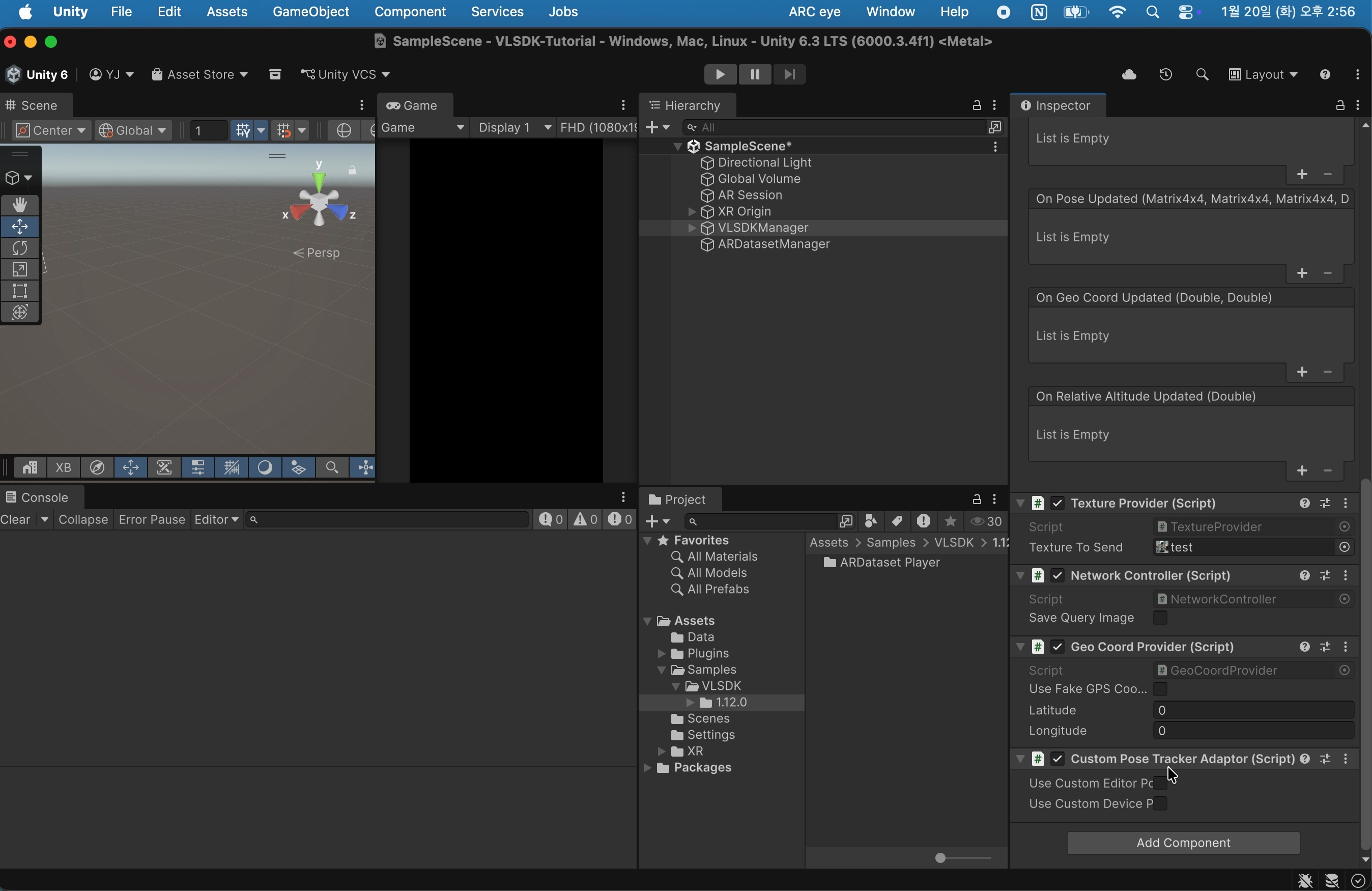
- Check the
Use Custom Editor Pose Trackeritem. If theARDataset Playerpackage has been added correctly, you can find theARCeye.Dataset.ARDatasetPoseTrackeritem. Select that item.
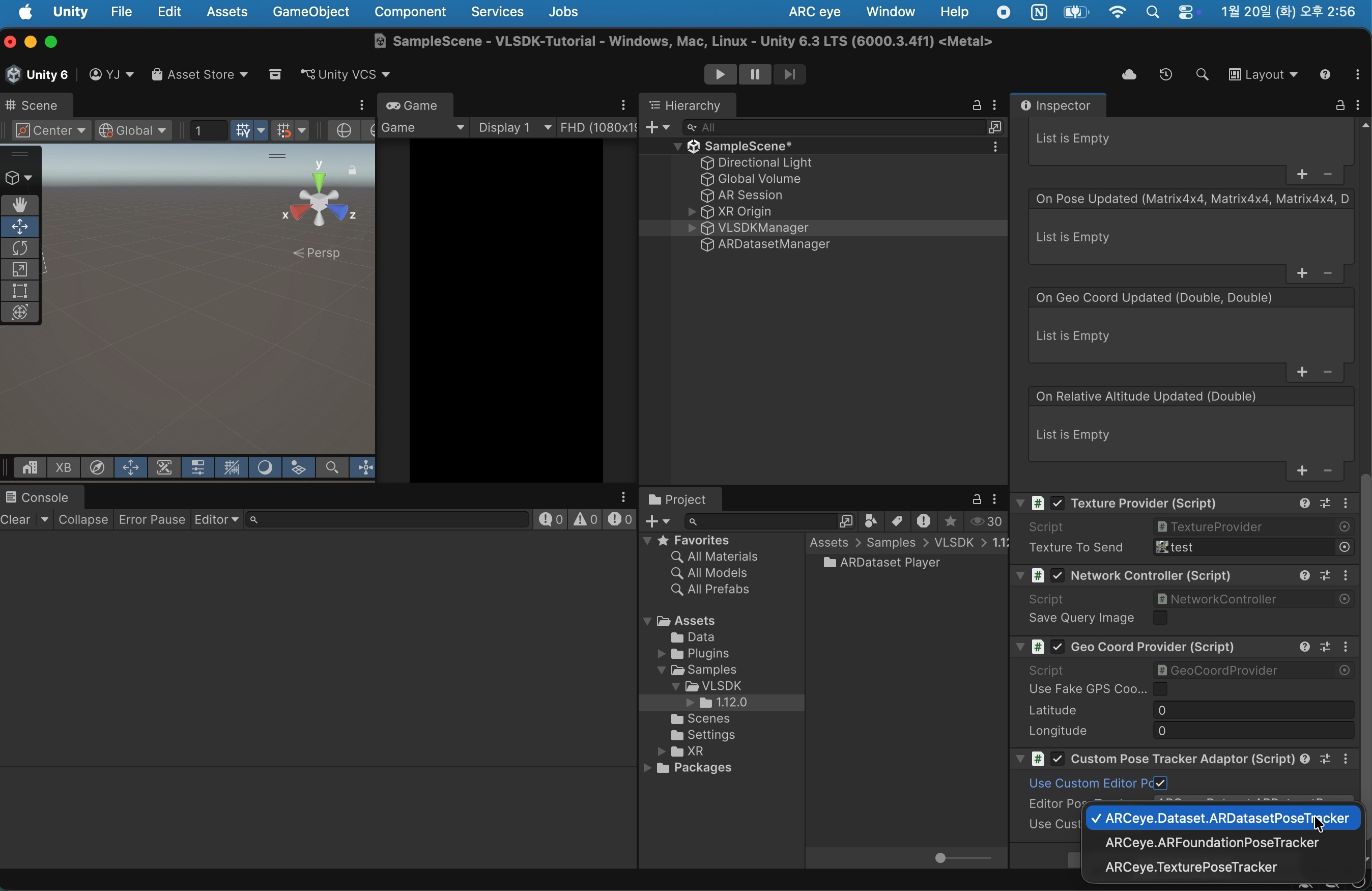
Now in the Editor environment, you will use the PoseTracker based on ARDataset.
4. Connecting the Dataset
Connect the recorded dataset to ARDatasetManager to enable playback in the Editor.
4.1 Selecting the Dataset File
- Select
ARDatasetManagerand click theSelect Dataset Directorybutton.
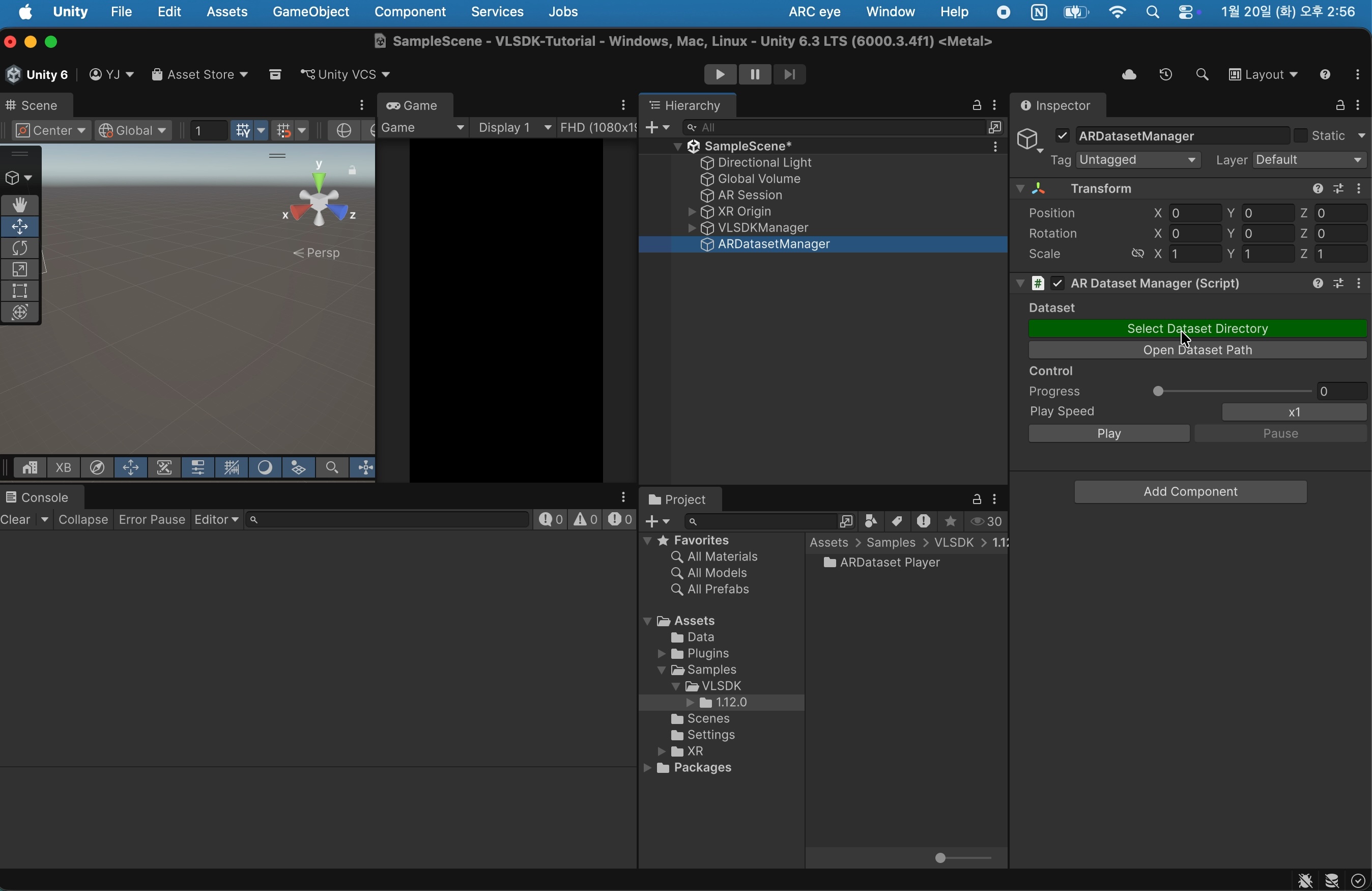
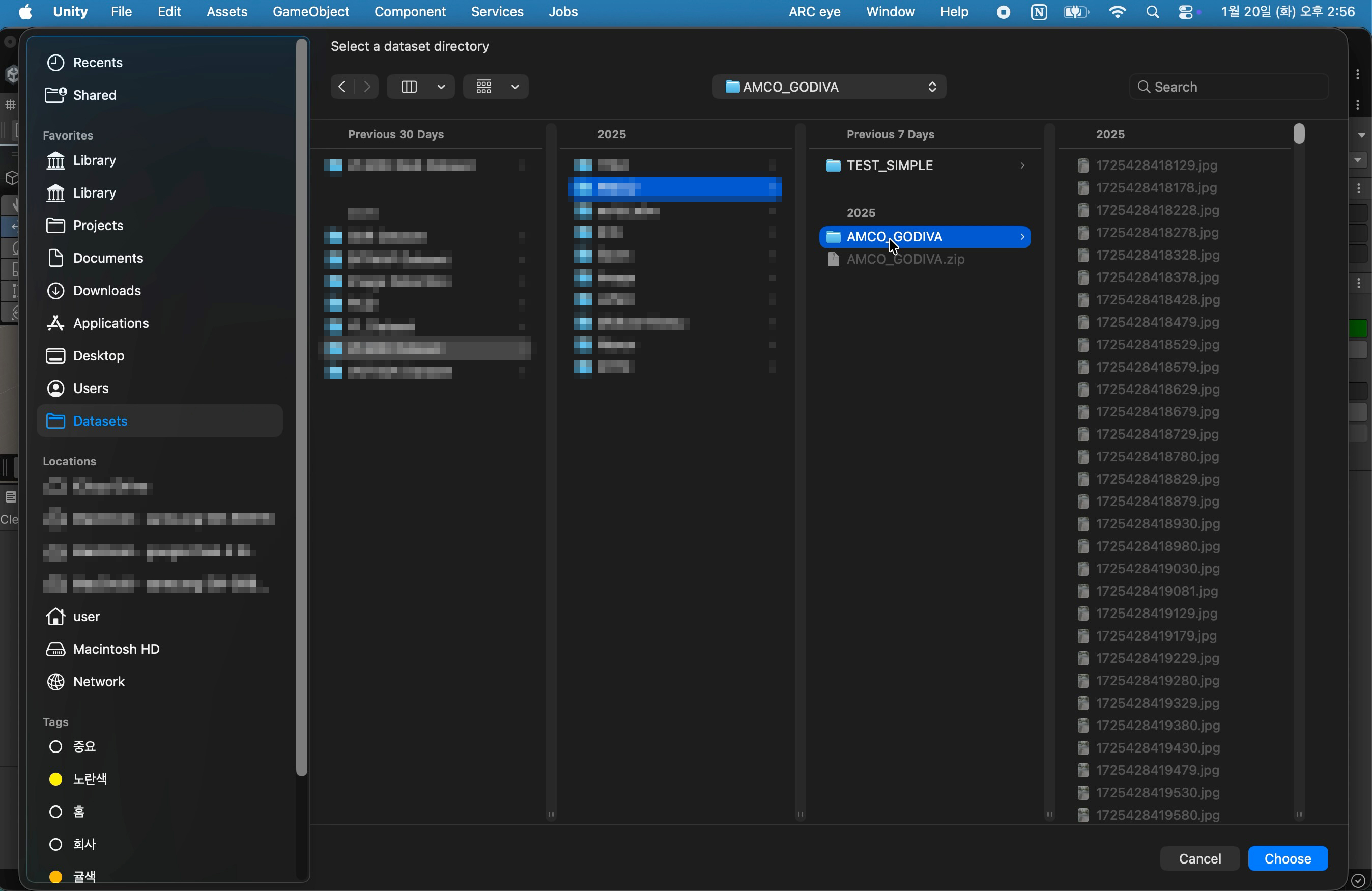
- When the dataset selection popup appears, select the dataset directory you created in advance.
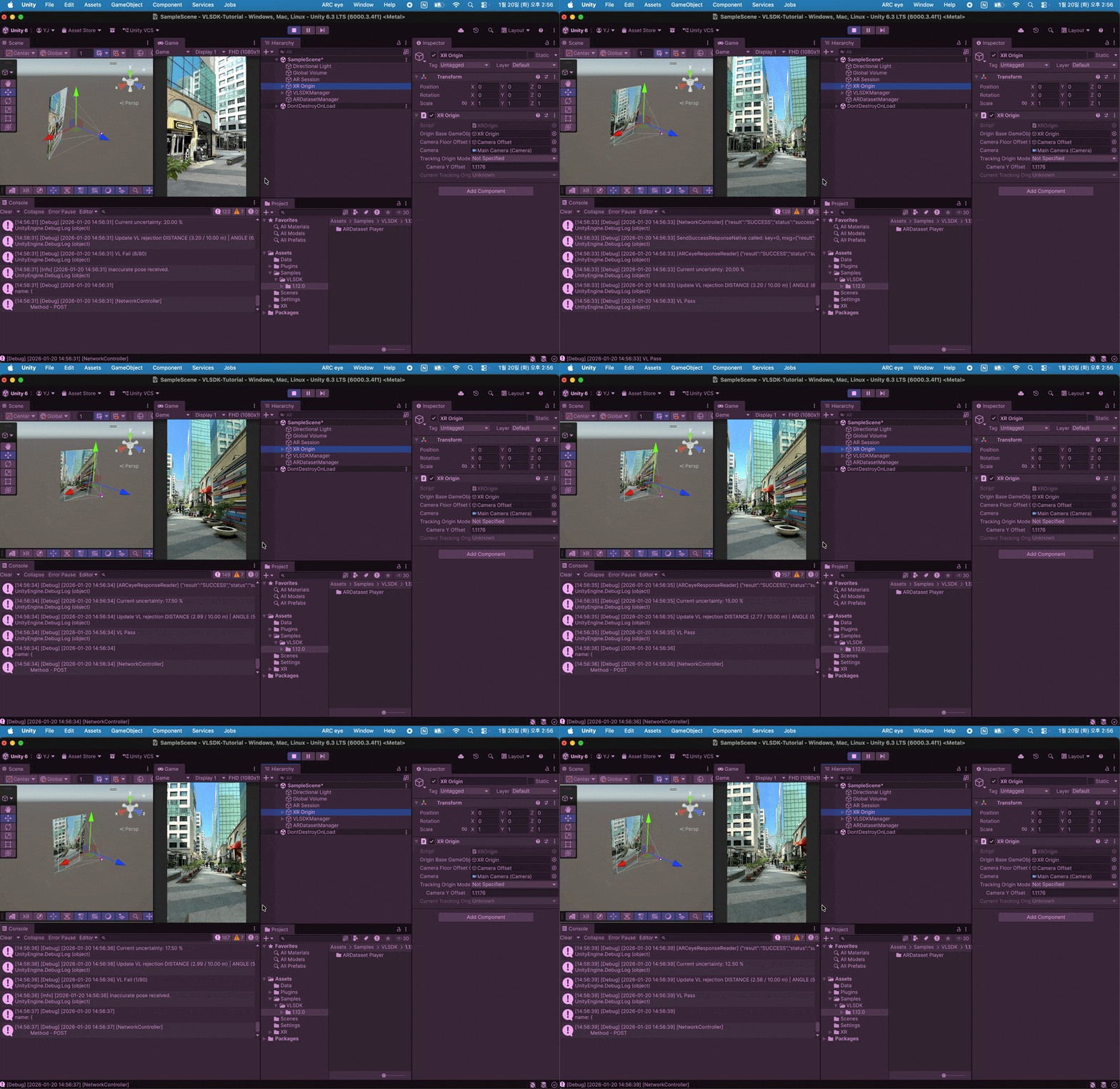
- When you enter Play Mode, the dataset will be played and you can verify that VLSDK operates similarly to the actual AR environment even in the Editor environment.
5. Conclusion
You can now test and develop AR functionality without a real device even in the Editor environment using ARDataset. Using Dataset mode can greatly improve development speed, and you can proceed with development efficiently by reusing datasets recorded in various environments.