GraphNodeItem Properties
This document explains the properties of GraphNodeItem.
Basic Properties (Identifiable)
| Property | Description |
|---|---|
| ID | The GraphNodeItem's unique identifier. Read-only. |
| UUID | The GraphNodeItem's universally unique identifier. Read-only. |
| Name | The GraphNodeItem's name. |
Properties
Weight
The node's weight.
- Used as a cost for passing through this node in pathfinding algorithms.
- Default value is 1.0.
Transit
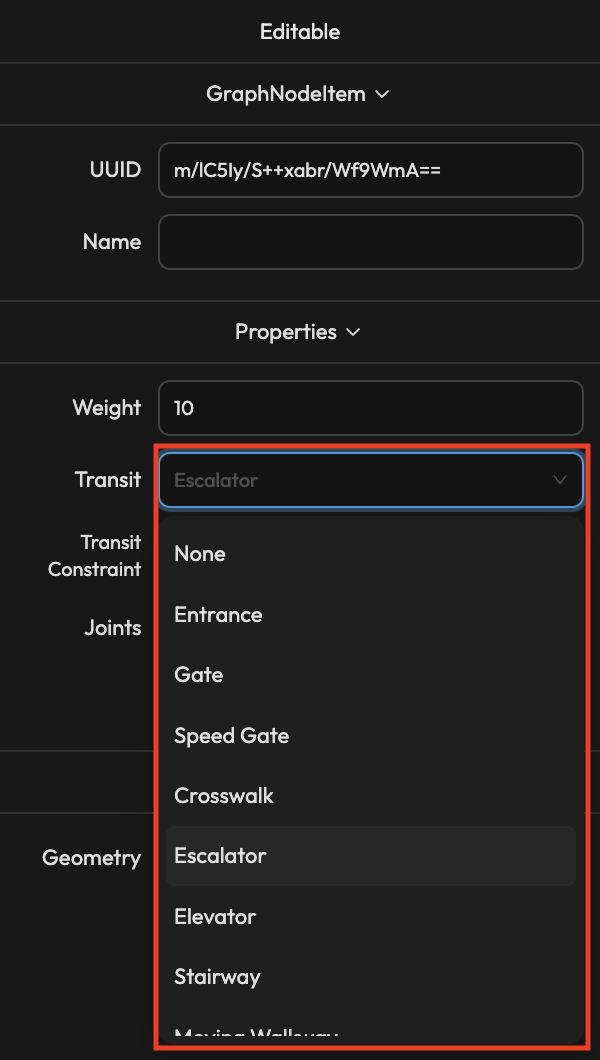
Configure inter-floor transit method.
| Value | Description |
|---|---|
| None | Normal node (no inter-floor transit) |
| Elevator | Elevator |
| Stair | Staircase |
| Escalator | Escalator |
When Transit is not None, you can connect (Joint) to nodes of the same Transit type in other Stages.
Changing Transit updates Weight to the new type's default only when the current Weight was the previous type's default. A Weight you entered yourself is kept as is.
The default Weight for vertical transit (Escalator · Elevator · Stairway) is 10, and 1 for every other type.
Transit Constraint
Configure conditions for determining floor transition at this node when using AR navigation.
| Value | Description |
|---|---|
| None | No floor transition |
| Visual Cues | Floor transition based on Visual Localization recognition |
| Barometer | Floor transition based on barometer |
| Direct Transition | Immediate floor transition when entering a specific area |
The Transit Constraint property is additional data used when utilizing AMapper projects in AR navigation and similar projects.
For typical map editing work, you can keep the default values.
Joints
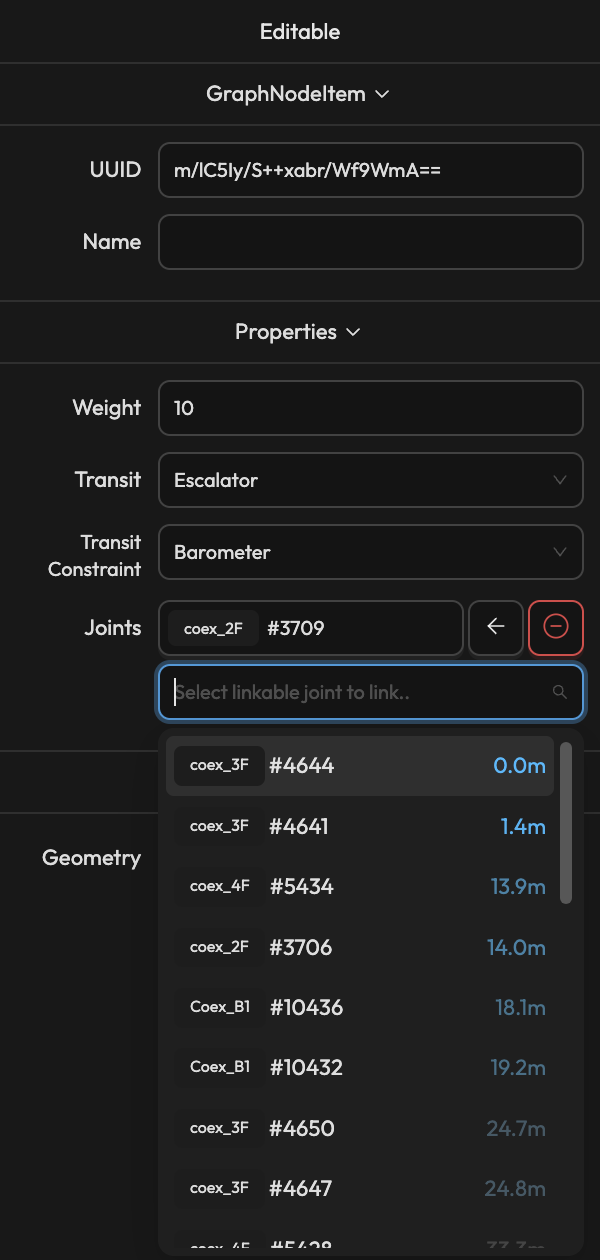
List of nodes from other Stages connected to this inter-floor transit node (when Transit is not None).
- Click on a connected node to navigate to that node.
- Use direction buttons to change connection direction (bidirectional/unidirectional).
- Use the delete button to disconnect.
- Select a new node from the dropdown to connect.
When connecting Joints, only nodes of the same Transit type within 100m are shown in the list.
Selecting two or more GraphNodeItem lets you edit Weight · Transit · Transit Constraint from the properties above in one go. See the Selection and Property Editing document for details.
Linkage
Geometry
Displays the GeometryItem connected to the GraphNodeItem.
- Click to navigate to the connected GeometryItem.
- When creating a node on the center point of a GeometryItem during graph drawing, it is automatically connected.
A GraphNodeItem connected to a GeometryItem serves as an entry point to that shape.
This allows specifying entry points to specific shapes (e.g., stores, facilities) during pathfinding.